Saving Diagnostic Logs from MSP360 Backup Locally
In some cases, diagnostic information from the software can’t be sent to the MSP360 Support Team automatically due to connection-related issues. In such situations, diagnostic information can be collected manually.
Savings logs locally from Windows
Using the GUI
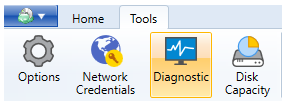
In the MSP360 Backup Agent, click Tools, then select Diagnostic.
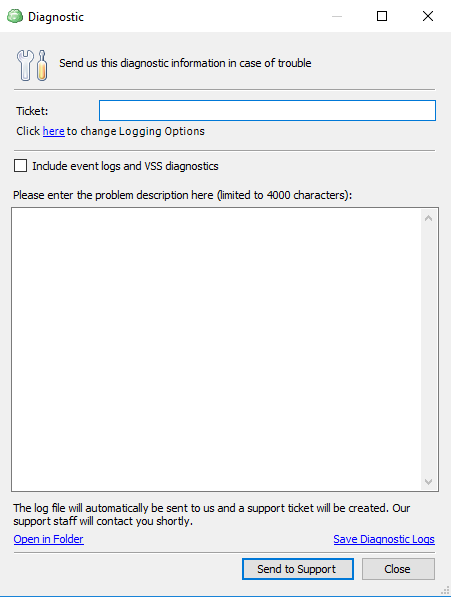
In the dialog window, click Save Diagnostic Logs in the bottom right, then specify the location to save the archive with diagnostic information.
Using Command Line Interface
Open the elevated command prompt to create a diagnostic information archive. Use the following commands:
cd {Backup software installation directory}
cbb saveLog -p %userprofile%
You can use any reachable local destination instead of %userprofile%. For example:
The path specified must already exist on the computer.
cd "C:\Program Files\MSP360\Online Backup"
cbb saveLog -p C:\Logs\
To upload the archive file with collected logs, you can also utilize the following commands for elevated Windows CMD:
cd "BackupSoftwareInstallationDirectory"
cbb sendFileToSupport -p "PathToArchiveFileWithLogs" -t SUPPORT_CASE_NUMBER
Savings logs locally from macOS and Linux
Using the GUI
In the MSP360 Backup Agent, select Feedback.

Then select Open logs in Folder.
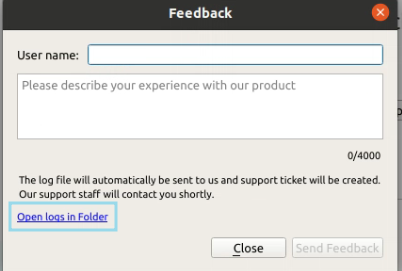
Once the folder containing the logs is opened, you can copy them into a compressed folder to send to Support via email or upload them to a file share of your choice (Google Drive, Dropbox, OneDrive, etc.) and send the link to download via email.
Using the Terminal
The logs can also be saved locally via Terminal for both Linux and macOS computers using the following command:
If you're using rebranded software, you might need to change the product name to the name of the rebranded Backup software you use.
Linux
"/opt/local/Online Backup/bin/cbb" saveLog -p ~
macOS
"/Applications/Online Backup.app/Contents/macOS/cbb" saveLog -p ~
The archive file will be placed in the home directory of the user currently logged in. It can then be shared with Support via email or File share