Gathering Dump Files (Windows Only)
In certain cases, a backup or restore plan may become frozen and/or unresponsive. To troubleshoot the issue efficiently, dump files of the plan process are needed. These can be collected automatically when sending diagnostic logs from the Management Console or collected manually on the local machine experiencing the issue.
Sending Memory Dumps with Diagnostic logs
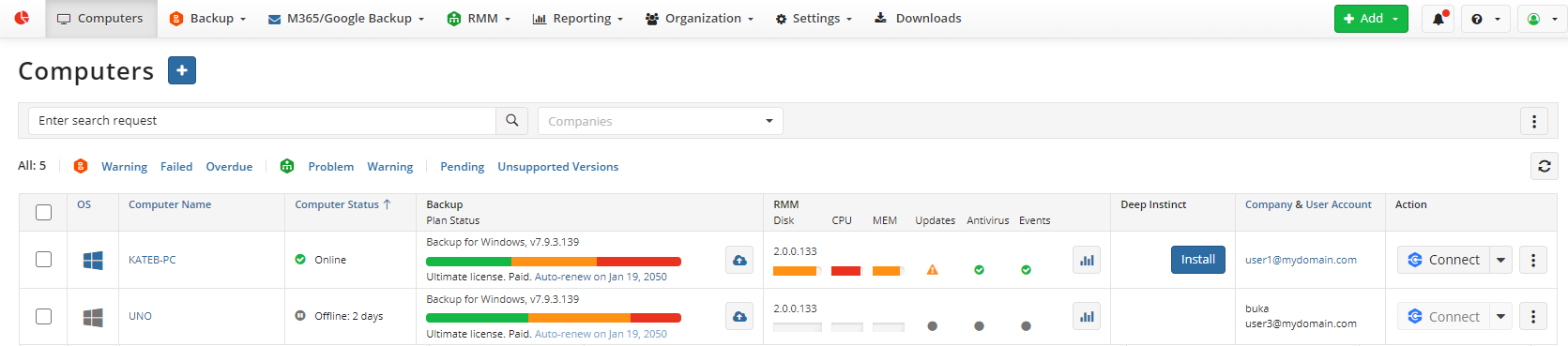
- Open the Computers page and find the computer in question.
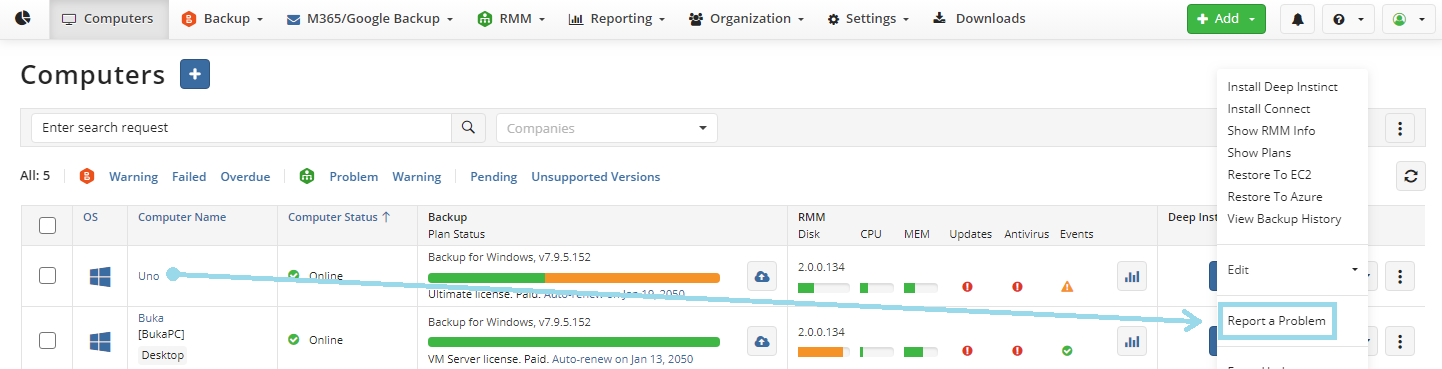
- Select the three dots to the right of the machine and select "Report a Problem".
- Select the option to Send logs to Support, select Backup, expand Options for specific Support Team requests, and select Send memory dumps of running plans.
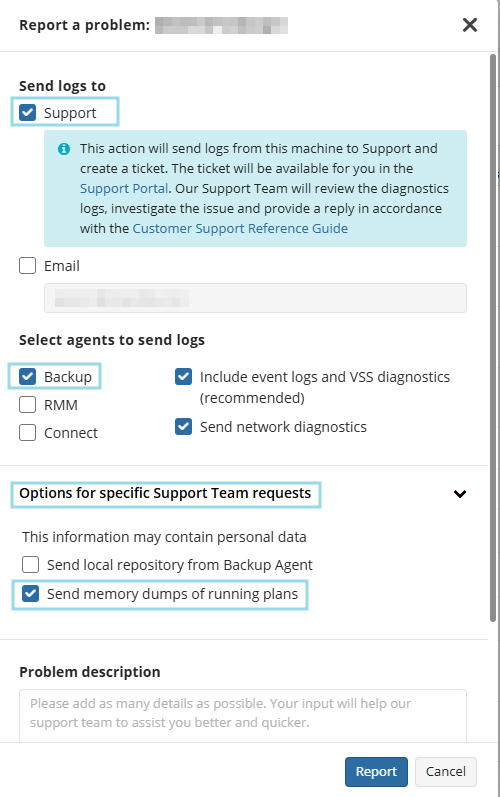
Please make sure you have already enabled high logging in the Backup Agent settings, and if you already have a Support Case open, include the ticket number.
Manually Creating Dump File
The following instructions were written for the Windows 10 and could slightly differ for other Windows releases.
Please follow the steps below to create and send dump files:
Encounter (or reproduce, if necessary) the issue with backup (or restore) plan freezing. It is critical to create a dump file right at the moment you are experiencing the issue.
Start Windows Task Manager. To do this, use one of the following methods:
- Right-click an empty area of the taskbar, and then click Task Manager.
- Press CTRL+SHIFT+ESC.
- Switch to the Details tab, and then find the name of the process you need.
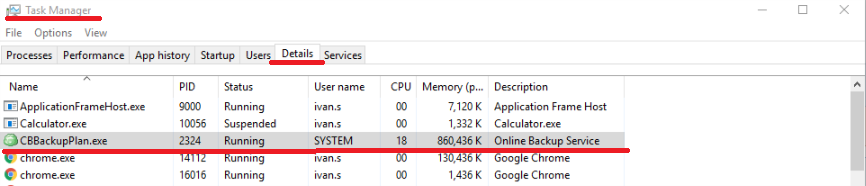
In most cases, the name of the process contains the name of the program you are using. CloudBerry Backup starts processes named CBBackupPlan.exe for each running backup plan task. If a backup plan freezes, it could be useful to investigate a pair of dump files for the appropriate CBBackupPlan.exe process.
- Right-click the required CBBackupPlan.exe process and click Create Dump File:
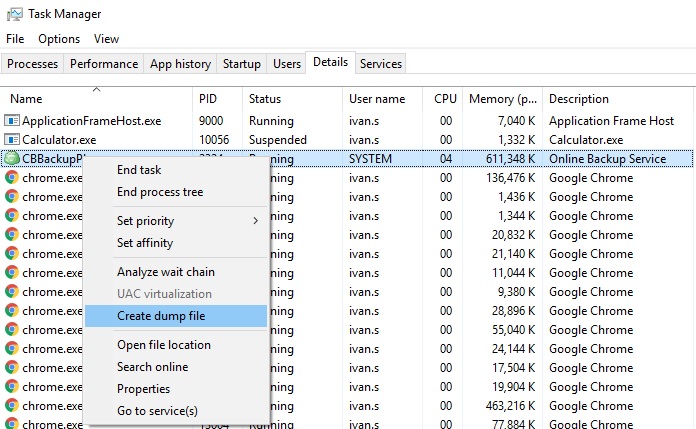
If you are prompted for a Windows administrator password or confirmation, type the password and click "Continue".
The dumping process can take some time to generate a file. Once it's completed, you will see a pop-up window with the path to a generated dump file.
- After waiting for 3-5 minutes, repeat step 4, thus creating a second process dump.
It's often useful to have at least two dumps to study the dynamic properties of the issue within the affected process.
- After the dump files are created, open Windows Explorer and navigate to the folder specified in the Dumping Process dialog to access the resulting (".dmp") files:
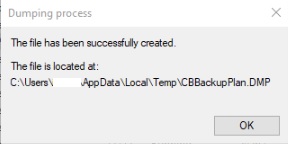
By default, the Windows operating system stores dump files in the "C:\Users{UserName}\AppData\Local\Temp" folder.
If you cannot find the AppData folder, you might need to enable the option to show "Hidden files and folders" in your Windows Explorer "View" settings.
- Compress the created ".dmp" files into a ".zip" or ".rar" archive and send it to our support team, or provide it in the support case where the dumps were requested for investigative purposes.
To upload the archive file with collected dumps, you can also utilize the following commands for elevated Windows CMD:
cd "BackupSoftwareInstallationDirectory"
cbb sendFileToSupport -p "PathToArchiveFileWithDumps" -t SUPPORT_CASE_NUMBER