Gathering Network Diagnostics (Windows Only)
In certain cases, a backup agent may not be able to connect to the Management Console or to your cloud destination. This article describes how to gather information to help resolve the issue.
Consider the TCP Ports Configuration article for proper firewall and antivirus configuration with MSP360 products.
Network Diagnostic Tool
Starting from Backup Agent 8.1.2, a Network Diagnostic Tool is introduced as a built-in tool to help identify connectivity issues. The tool checks:
- Accessibility of Backup, RMM, and Connect services
- DNS name resolution
- SSL/TLS connection establishment
- Certificate validity
- Associated IP addresses
Sending the Network Diagnostic results to Support
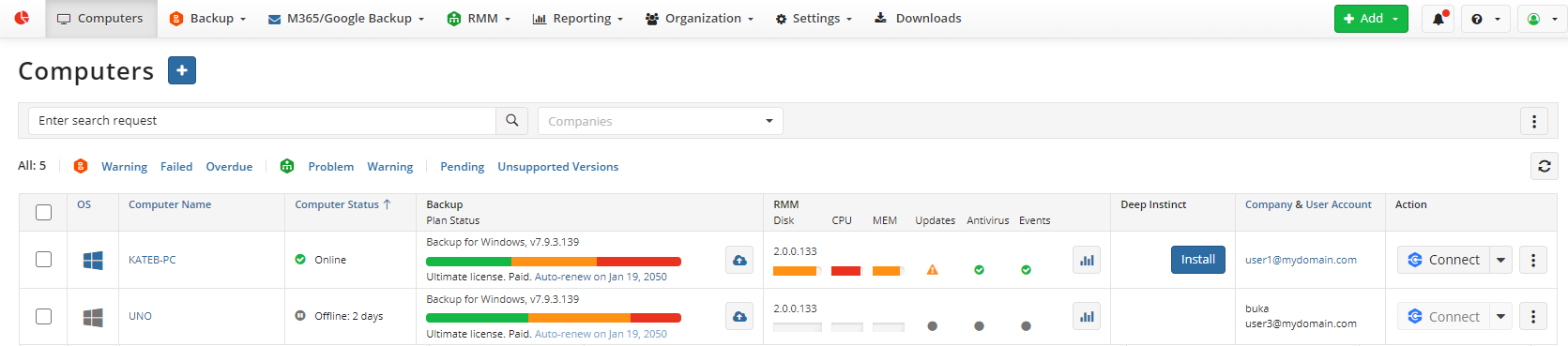
- Open the Computers page and find the computer in question.
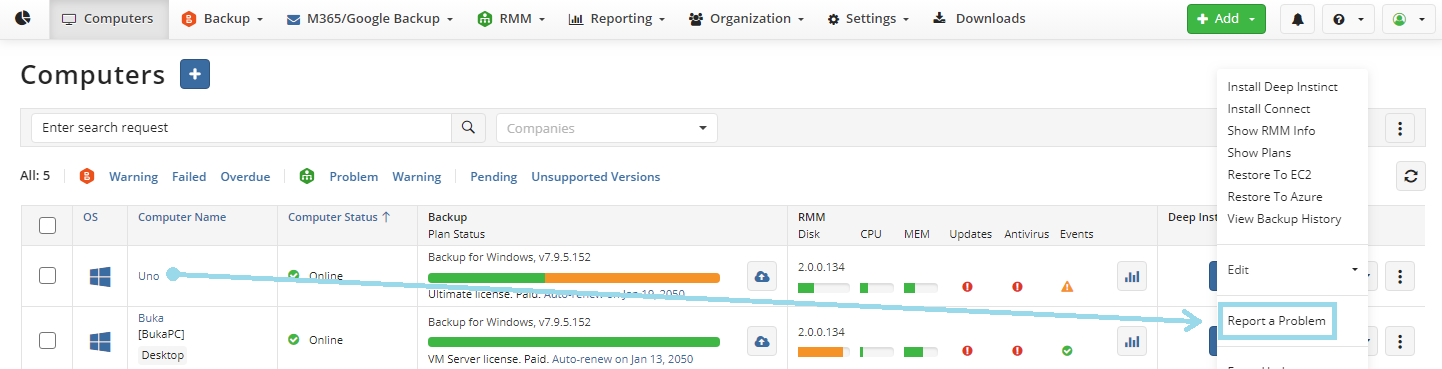
- Select the three dots to the right of the machine and select "Report a Problem".
- Select the option to Send logs to Support, select Backup, and select Send network diagnostics.
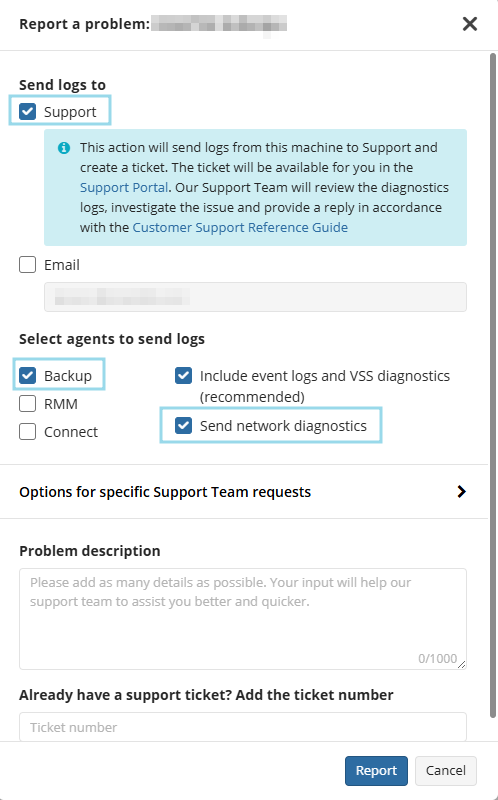
Please make sure you have already enabled high logging in the Backup Agent settings, and if you already have a Support Case open, include the ticket number.
This option is also available in the local Backup Agent GUI. In the MSP360 Backup Agent, click Tools, then select Diagnostic.
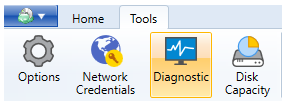
Select the option Include network diagnostic.
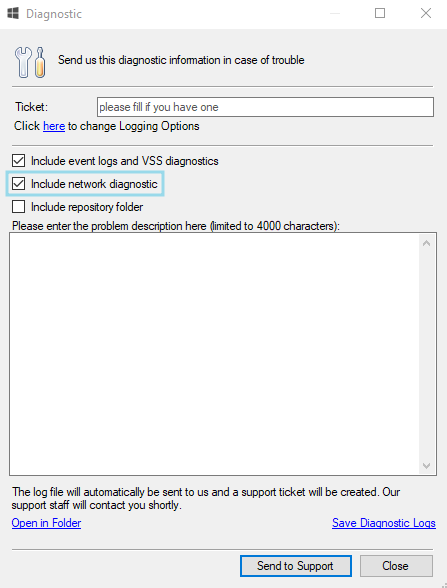
Using the Network Diagnostic Tool in the Backup Agent
To perform a network diagnostic:
- Open Backup Agent on the target machine.
- In the Tools menu, select Run Network Diagnostic.
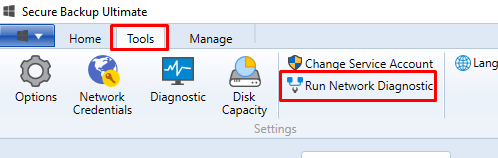
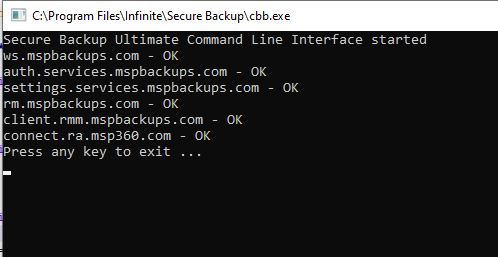
After the check is complete, the results appear on the screen. The same results are also logged for further analysis.
Third Party Tools
If more information is still needed, the Support Team may request that you Gather Fiddler or Gather Wireshark logs for further troubleshooting efforts.