Article ID: kb00341Last Modified: 09-Oct-2026
Wi-Fi is Not Available on Bootable USB
This article explains how to connect to a Wi-Fi network from the BMR recovery environment.
This feature requires Quick Restore v8.2.0.135 or higher.
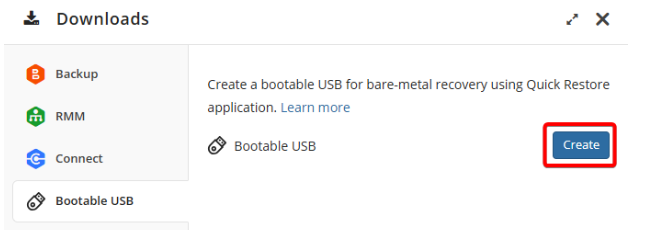
- On the Downloads menu of the Management Console, navigate to the Bootable USB tab, and click the Create button. The Quick Restore app will be downloaded and installed if necessary, and then started.
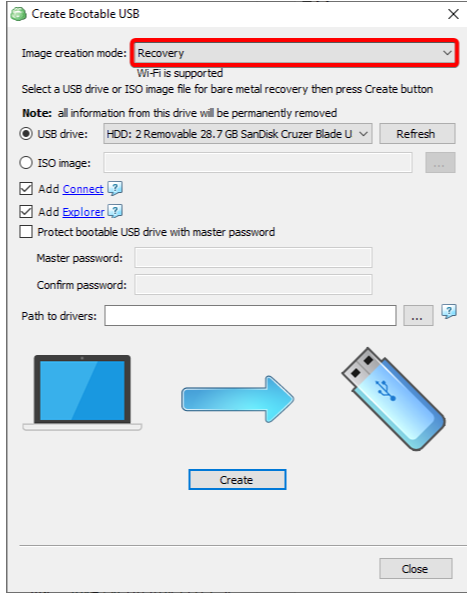
- In the Create Bootable USB wizard, select the Recovery option in the Image creation mode field.
- If the installed system (where the Bootable ISO/USB is created) does not have the Wi-Fi device drivers of the target computer, specify the folder with these drivers in the Path to drivers field.
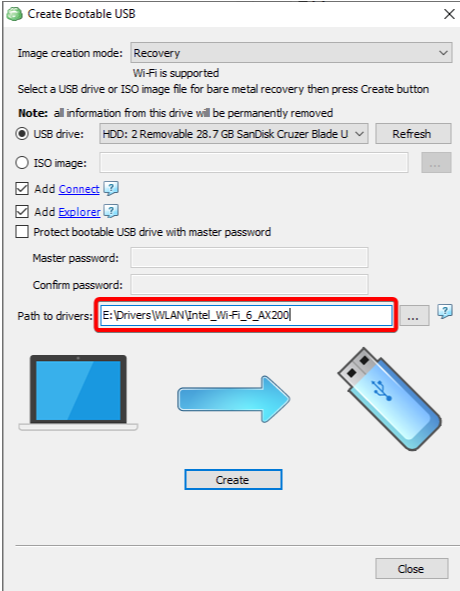
- Click Create and wait until the media creation is done.
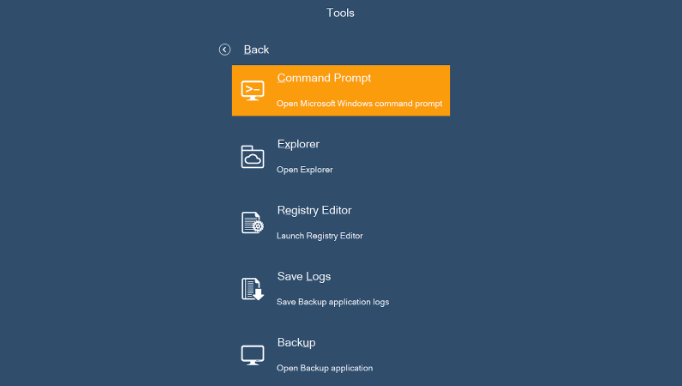
- Boot from the recovery disk and open Command Prompt.
- You need the cbb wifi command to connect to Wi-Fi.
wifi -c -s SSID [-p password]

    -l(-list)            (-list): list WiFi networks
    -c(-connect)         (-connect): connect to WiFi network
    -s(-ssid)            (-ssid): network SSID
    -p(-password)        (-password): network password
    -d(-disconnect)      (-disconnect): disconnect all WiFi networks
    -li(-listInterfaces) (-listInterfaces): list WiFi interfaces
    -ch(-connectHidden)  (-connectHidden): connect to hidden WiFi network
    -i(-interface)       (-interface): network interface
    -a(-auth)            (-auth): authentication mode
    -e(-enc)             (-enc): encryption
    -?(?,/?,help,man)    Show help on connect to WiFi network
- Enter the command cbb wifi -li to start the wlansvc service and list Wi-Fi interfaces:
X:\Cloud.Recovery>cbb wifi -li
Online Backup Server Command Line Interface started
Configuring WiFi...
Starting WLAN AutoConfig service...
Wait for WLAN AutoConfig service...
Service WLAN AutoConfig is started.

Found 1 interfaces:
Id: 6dcf6da1-c1ef-43f9-8b20-3386448db0e4, Description: Intel(R) Wi-Fi 6 AX200 160MHz, State: Disconnected
Only if the valid Wi-Fi drivers are added to the recovery media and the wlansvc service is started, the Network setup in the main menu will show the Wi-Fi interfaces.
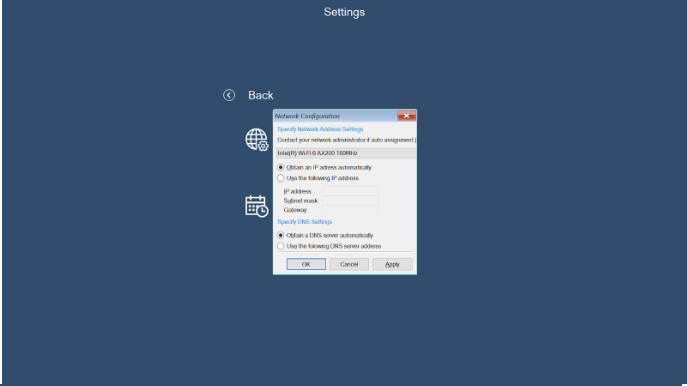
Until the Wi-Fi connection is established, the network settings in this dialog box will remain empty.
- Enter the command cbb wifi -l to scan for Wi-Fi networks:
X:\Cloud.Recovery>cbb wifi -l
Online Backup Server Command Line Interface started
Configuring WiFi...
WLAN AutoConfig service runnig

Found 4 networks:
SSID: AMO WI-FI, Signal Strength: 65, Security enabled: True, Auth: WPA2PSK, Encryption: AES
SSID: MSP360Lab, Signal Strength: 85, Security enabled: True, Auth: WPA2PSK, Encryption: AES
SSID: DIRECT-Ab-IM350_da4a, Signal Strength: 29, Security enabled: True, Auth: WPA2PSK, Encryption: AES
SSID: CAM_2UXQG4221209, Signal Strength: 43, Security enabled: True, Auth: WPA2PSK, Encryption: AES
- To connect to a Wi-Fi network, use the following syntax:
cbb wifi -c -s {Network_SSID} -p {WiFi_password}
X:\Cloud.Recovery>cbb wifi -c -s MSP360Lab -p *************
Online Backup Server Command Line Interface started
Configuring WiFi...
WLAN AutoConfig service runnig
Connecting to MSP360Lab network
Connected
- If the computer has multiple Wi-Fi interfaces, use the following syntax:
cbb wifi -i {WiFi_interface_id} -c -s {Network_SSID} -p {WiFi_password}
X:\Cloud.Recovery>cbb wifi -i 6dcf6da1-c1ef-43f9-8b20-3386448db0e4 -c -s MSP360Lab -p *************
Online Backup Server Command Line Interface started
Configuring WiFi...
WLAN AutoConfig service runnig
Connecting to MSP360Lab network
Connected
The password is masked in the examples above.
- Enter the command cbb wifi -li again to check the connection status (should be State: Connected):
X:\Cloud.Recovery>cbb wifi -li
Online Backup Server Command Line Interface started
Configuring WiFi...
WLAN AutoConfig service runnig

Already connected:
SSID: MSP360Lab, Signal Strength: 86, Rx/Tx rate: 0/105 Mbps

Found 1 interfaces:
Id: 6dcf6da1-c1ef-43f9-8b20-3386448db0e4, Description: Intel(R) Wi-Fi 6 AX200 160MHz, State: Connected
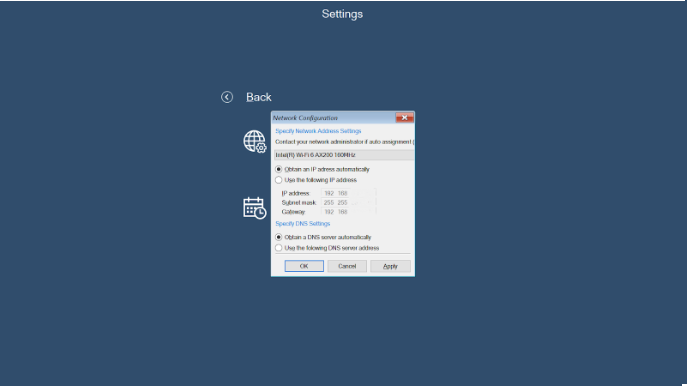
- (Optional) To check whether the IP settings (DHCP) were applied correctly, use the ipconfig command, or go to Setup -> Network:
- Start the Bare Metal Recovery wizard to proceed with the restore - if the Internet connection is established, no connection errors should appear:
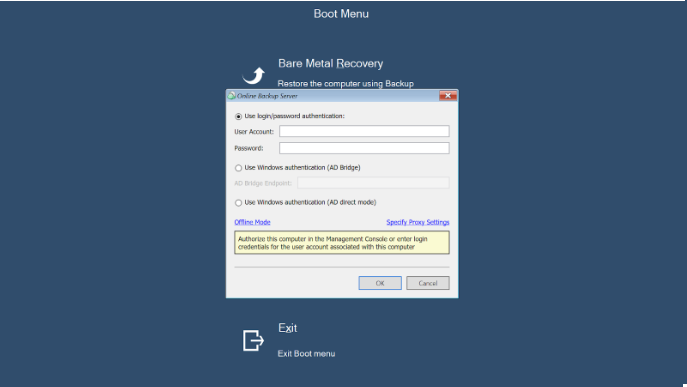
Specify the correct Wi-Fi password - in most cases, a successful connection happens almost instantly, and upon checking the connection state, it should be Connected.