Article ID: kb00189Last Modified: 09-Oct-2026
Insufficient Permissions for Restore Verification (code 2021)
Situation
While running a restore verification (regardless of whether you run it manually or via the backup plan configuration) the following error occurs: Insufficient permissions: Cannot start virtual machine for Restore Verification. Current user is not granted with sufficient permissions
Cause
The restore verification mechanism requires a running Hyper-V virtual machine. The user under whom you try to run the restore verification does not have enough permissions to start a virtual machine.
Solution
Include the user in the Hyper-V Administrators group.
To include the user in the Hyper-V Administrators group, proceed as follows:
- On the Windows panel, click Start, then select Settings.
- Select Administration Tools, then select Computer Management.
- Click System Tools, then select Local Users and Groups, then select Groups.
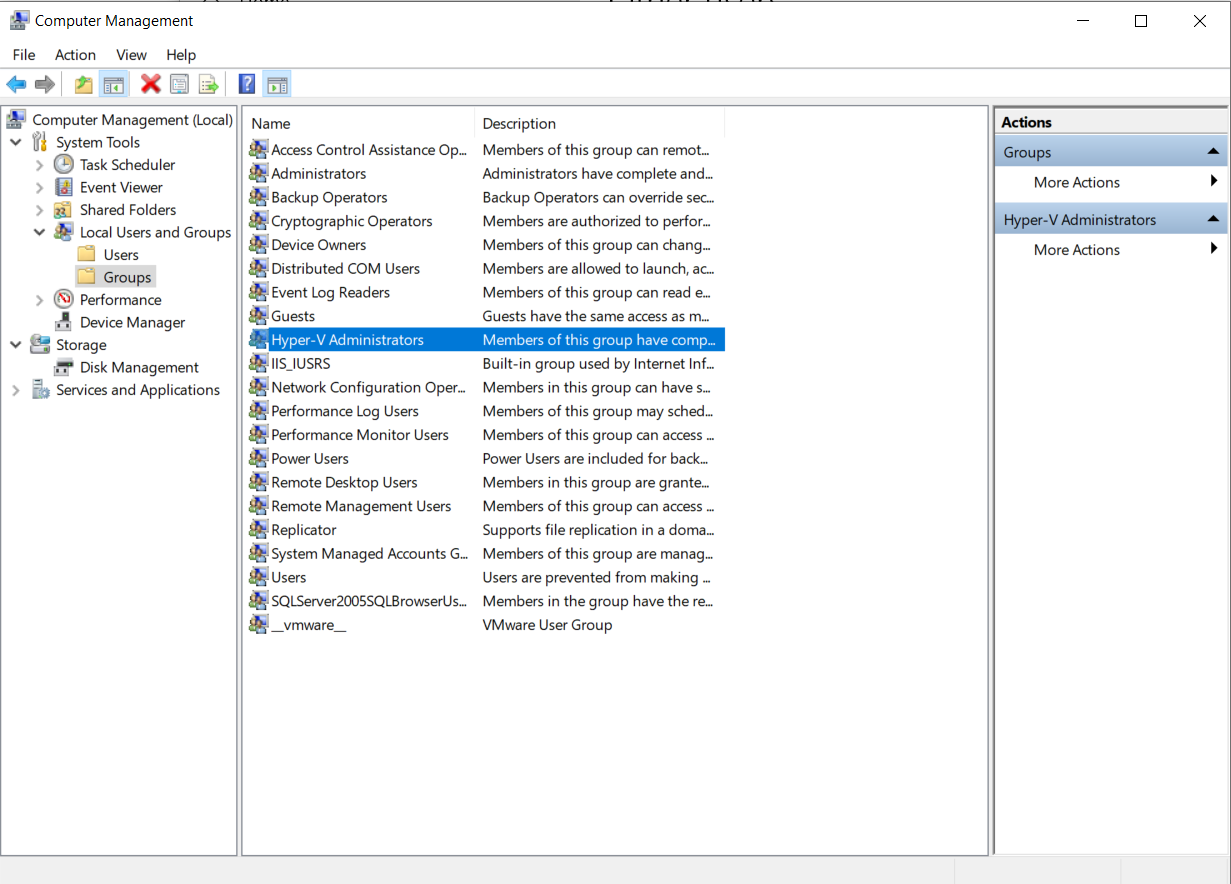
- Double-click the Hyper-V Administrators group.
- In the Hyper-V Administrators Properties box, click Add. The Select Users or Groups window opens.
- In the Enter the object names to select field, enter the user account name you want to grant permissions to, and then click OK.
- The user appears in the Members section of the Hyper-V Administrators Properties box.
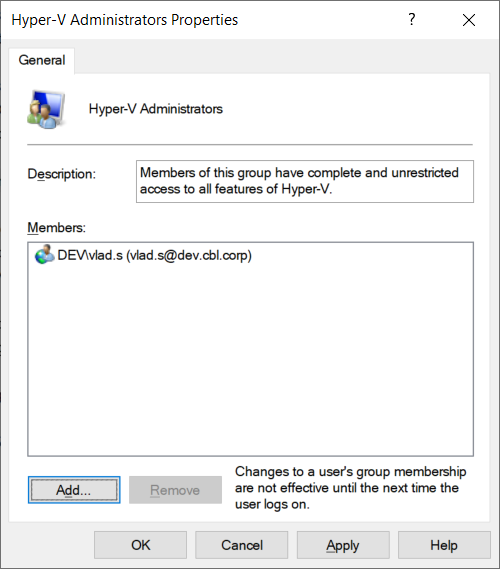
- Click Apply, then click OK.