Unable to Delete Backed-Up Object due to Object Lock (Code 1093)
Situation
The following error message is reported: Unable to delete backed up objects due to Object Lock. With Object Lock enabled, the backup cannot be deleted until its protection period expires.
Cause
This error occurs if there is an attempt to delete objects protected by Object Lock. This may occur if Default Object Lock settings are not configured properly on the Management Console side. When the backup service attempts to delete data, the backup storage rejects the request because the objects are still within their protection period. Any attempt to delete protected objects before their protection period expires will generate this error.
Solutions
Depending on the Object Lock feature type, you have the following options:
- Select solution 1. Set correct Default Object Lock settings. Use this solution if you have the Default Object Lock feature enabled but the protection period is set incorrectly for the backup destination in the Management Console.
- Select solution 2. Wait until the retention period expires.
- Select solution 3. Force delete using the BypassGovernance permission on the storage if the retention mode of Object Lock is set to Governance.
Solution 1: Synchronize or Configure Default Object Lock
To avoid this situation, ensure that the Object Lock configuration in the backup destination matches the Default Object Lock settings defined in your storage bucket. This helps prevent deletion errors and keeps retention policies consistent.
- Click the Configure Object Lock solution in the error message in MSP360 Backup to apply the configuration automatically.
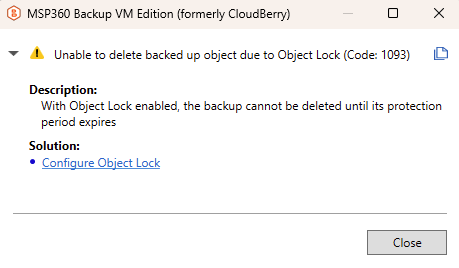
The Managed Backup system will attempt to automatically read the Default Object Lock configuration from the storage.
If it cannot be detected (for example, due to storage limitations or insufficient permissions), this error means that you should configure it manually.
In the Management Console, navigate to Backup > Storage Accounts.
Click the storage account name to see the added backup destinations.

- Click the Edit icon to configure the Default Object Lock settings. In the Edit destination dialog, you can change the protection period, if you need to do this manually.

- Save the settings.
Example scenario:
Specified Default Object Lock: 20 days
Real Object Lock on the backup destination: 30 days
In this case, the Default Object Lock period should be set to 30 days in the backup destination configuration.
Solution 2: Wait Until Protection Expires
If some objects were already backed up with a longer Object Lock retention period, they will remain protected until that period expires.
In this situation:
The backup service request to delete these objects fails.
The only option is to wait until the Object Lock protection period expires.
Once the protection period ends, the backup data can be deleted normally.
Important Notes
Changing the Default Object Lock period only affects newly created backup objects.
Previously backed-up objects remain protected according to their original retention period.
If objects are already protected by Object Lock, the system takes into account only the purge date and cannot override it.
Solution 3: (Object Lock for GFS) Contact Storage Provider Support to Delete Data
Object Lock supports the following retention modes:
- Governance Mode (default mode for Object Lock for GFS backups)
- Compliance Mode
Governance Mode
- Objects can be deleted or modified only by users with special permissions.
- Intended for operational protection with administrative override.
Compliance Mode
- No user, including root or administrator, can delete or modify locked objects.
- Designed for strict regulatory requirements (SEC, FINRA, HIPAA, etc.)
- Once enabled, cannot be undone.
If Governance mode (default) is set for GFS backups, contact the Storage Provider Support team to delete data. If the retention mode has already been changed to Compliance, you should wait until the protection ends. Once the protection period ends, the backup data can be deleted normally.